Automatic queries are fully adapted to the study protocol and are configured on request by the Admin. The access rights to the different automatic queries are defined for each user profile.
Once the user enters the data in the eCRF pages, automatic queries allow the real-time verification of :
- one single data. In that case, they are called Edit Check;
- the comparison of various data entered in one or different eCRF pages. In that case, they are called Cross Check.
Edit Check
All the users which have the user rights to fill in eCRF pages (creation or update rights) can access the Edit Check functionality.
Edit Check concerns the verification of :
- Mandatory fields (Hard or soft requested fields)
- Bounded fields (for numeric or date fields)
- Partial date
- Conditional field
Edit Check for mandatory fields
Two different types of mandatory fields exist in the eCRF tool.
1/ Hard requested fields: Fields marked by a red asterisk in the eCRF pages.
The page can not be saved if the field is not filled.

In case of missing hard requested data at the page save, a pop-up is displayed. The user should close the pop-up window and fill the field before saving the page.
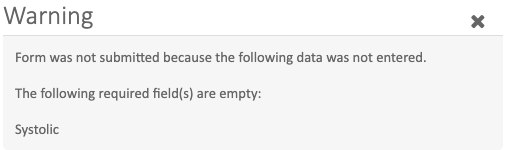
2/ Soft requested fields: Fields marked by an orange asterisk in the eCRF pages.
The page can be saved if the field is not filled but a warning message will remind the user to fill the field.

In case of missing data at the page save, a pop-up is displayed. The user could choose to close the pop-up window and fill the field or not before saving the page.
If the user does not fill the soft requested fields, the corresponding missing data is listed in the data clarification tool.
Edit Check for bounded fields
For numeric and date fields, bounds can be specifically specified in the eCRF tool.
In that case, the specific bounds are displayed as indicated below.

If the user enter a value outside the range of the bounds defined for this numeric field, a pop-up will open asking for the data revision for this field.
Depending on the study protocol, these bounds can be hard or soft requested.
In case of hard requested bounds, the warning window is displayed as below and the user can not save the page if this data remains out of the defined range.

In case of soft requested bounds, the warning window is displayed as below and the user can keep the data out of the defined range and save the page after the data verification.

If the user confirm the out of range value for the field after verification, the corresponding « out of range » data is listed in the data clarification tool.
Edit Check for partial date
Various formats can be accepted for a date in the eCRF tool depending on the study protocol.
If a date field can be fill with a partial date (format XX/XX/YYYY), it will be displayed in the eCRF page as indicated below.

If the partial date format is hard requested, then the format will be automatically adapted to the XX/XX/YYYY format whatever the user enters for this fields.
Edit Check for conditional fields
The mandatory status of fields can be conditioned on the data filled in other fields.
For example (illustrated below), a date field is hard requested only if the answer to a previous field is « Yes ».

In that case, the data of the date field is considered as missing only if the user answer « Yes » to the previous field. The eCRF tool will then automatically open a warning window to ask for user verification.
Cross Check
All the users which have the user rights to fill in eCRF pages (creation or update rights) can access the Cross Check functionality.
Cross checks are specifically customised according to the data validation plan. They automatically warn the user to verify a data field in comparison with one or various other data value entered in the same or a different eCRF page.
Cross checks are listed in the data verification tool.
When a user wants to save an eCRF page containing unsolved edit and cross checks, a specific pop-up (shown below) opens listing all the automatic queries still opened in this page and proposing to the user to verify and update the inconsistent data or to confirm the data and save the page.

Semi-Automatic Queries
Automatic queries can be verified and closed by a monitor.
After pages submission, the automatic queries are directly marked in the eCRF pages with a « ! » (see below).

By clicking on the « ! » icon, the monitor can add a response / resolution, close the query (clicking on « move to archive ») and then validate the query by signing.

The status and history of the specific query will be available in the data clarification tool.