If you don’t have access to the following screens, please contact the Admin to ask for the appropriate access rights.
The “User management” option allows the user to create, update and delete the user accounts (depending on their access rights).
User accounts are managed from the “User management” option in the Builder. To access to Builder, the user clicks on the “Admin” icon as indicated below.
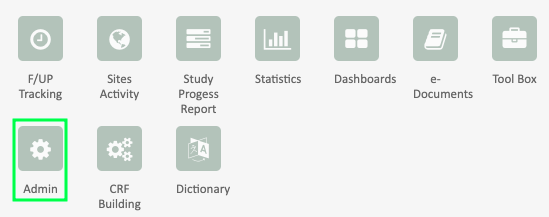
Then the user selects the access user management option clicking as seen below.

As indicated in 1 below, the user can :
- Search an existing user account (entering their name, first name, login or email)
- Create a new user account
- Display all the user currently online
In order to update an existing user account, the user should click as indicated in 2 below for displaying the user account list belonging to a specific profile. Then he should click on the specific user account to be updated.

Each user is unique (by the combination of the name, first name and email address) in the SMART platform and receives a login and secured password once his account is created in the platform.
In order to create a new user, the user profile, geographic area and email address have to be determined.
A user belonging to the investigator profile is associated to a unique geographic area of level 3.
A patient or a subject is associated to a specific investigator and thus to a unique geographic area.
As a consequence, when the geographic area is modified for one user, then the whole patients associated to this user change their attached geographical area.
User « on behalf »: A multisite mode is available for the users
- who belong to several geographic areas from level 2 (country) or from level 3 (center)
- who enter the data for several investigators
If an investigator is involved in two different centers, two different accounts can be created (one for each center) or a multisite account can be created (giving the choice for the user to select the center he wants to enter the data of the patient). The multisite account has to be related to a specific profile of user « on behalf ».
For this specific profile, the population displayed should correspond to the item « Cases from attached and downward structures / with filter ».
For the nurse who enters the patient data from all the investigators of the same center, click on the option “data entry on behalf of Center” and select the center concerned.
For the nurse who enters the patient data from any investigators of one or several center(s), click on the option “data entry on behalf of users” and select the users concerned.
At the creation of a new user account,
- The Login is automatically generated by the platform.
- The password is automatically generated by the platform and at the first connection, the new user will be asked to change and personalize the password.
- The text of the email sent to the user after his registration is automatically generated.
At the update of the user profile, the generation of a new password is not mandatory anymore.
In case of a forgotten password,
- the Admin or Builder can request the generation of a new password for the user or
- the user can activate a « forgotten password » request