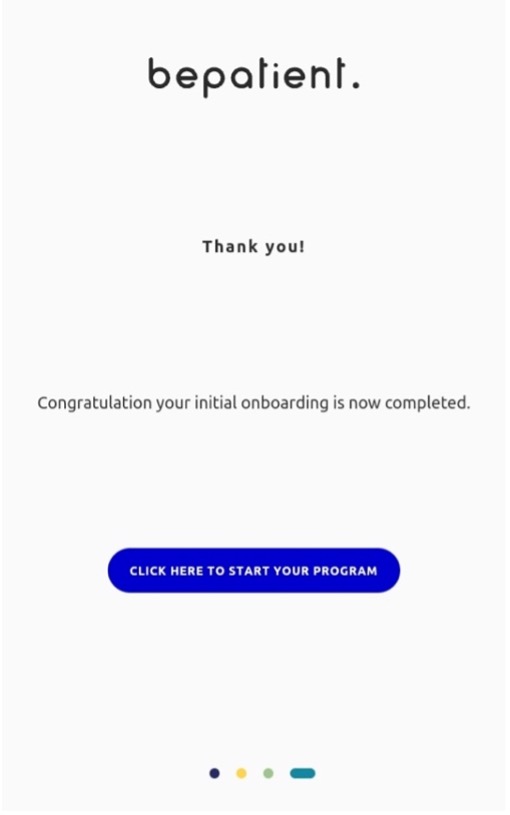
Initial onboarding contains Terms of service, Introduction page, Set a new password, and Final page. Terms of service is not mandatory however the other three pages are mandatory for initial onboarding.
Terms of service
To edit the terms of service, firstly, you need to create a page using the ‘ePRO only – TOS’ template (explained under How to add a page in ePRO).
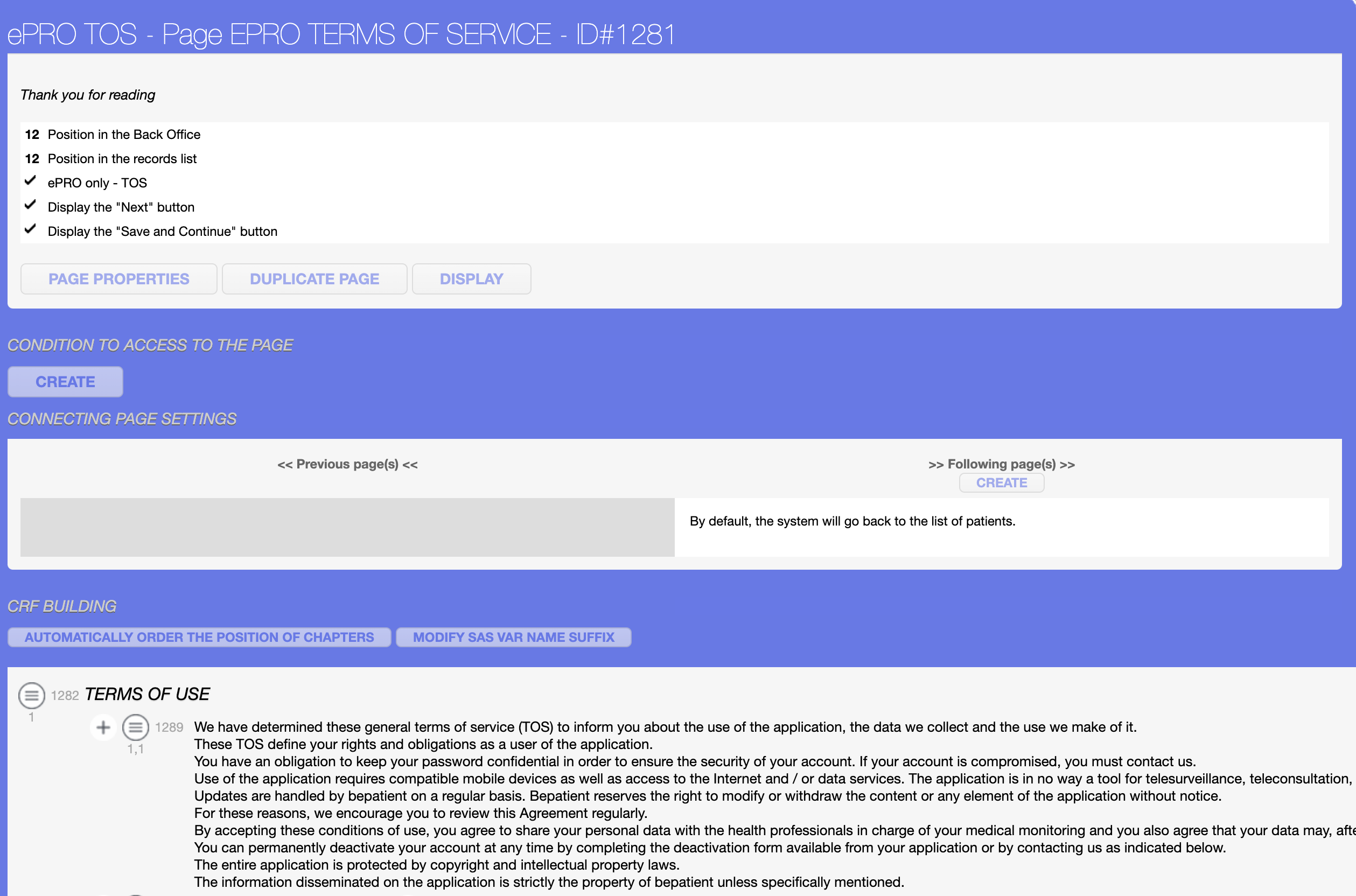
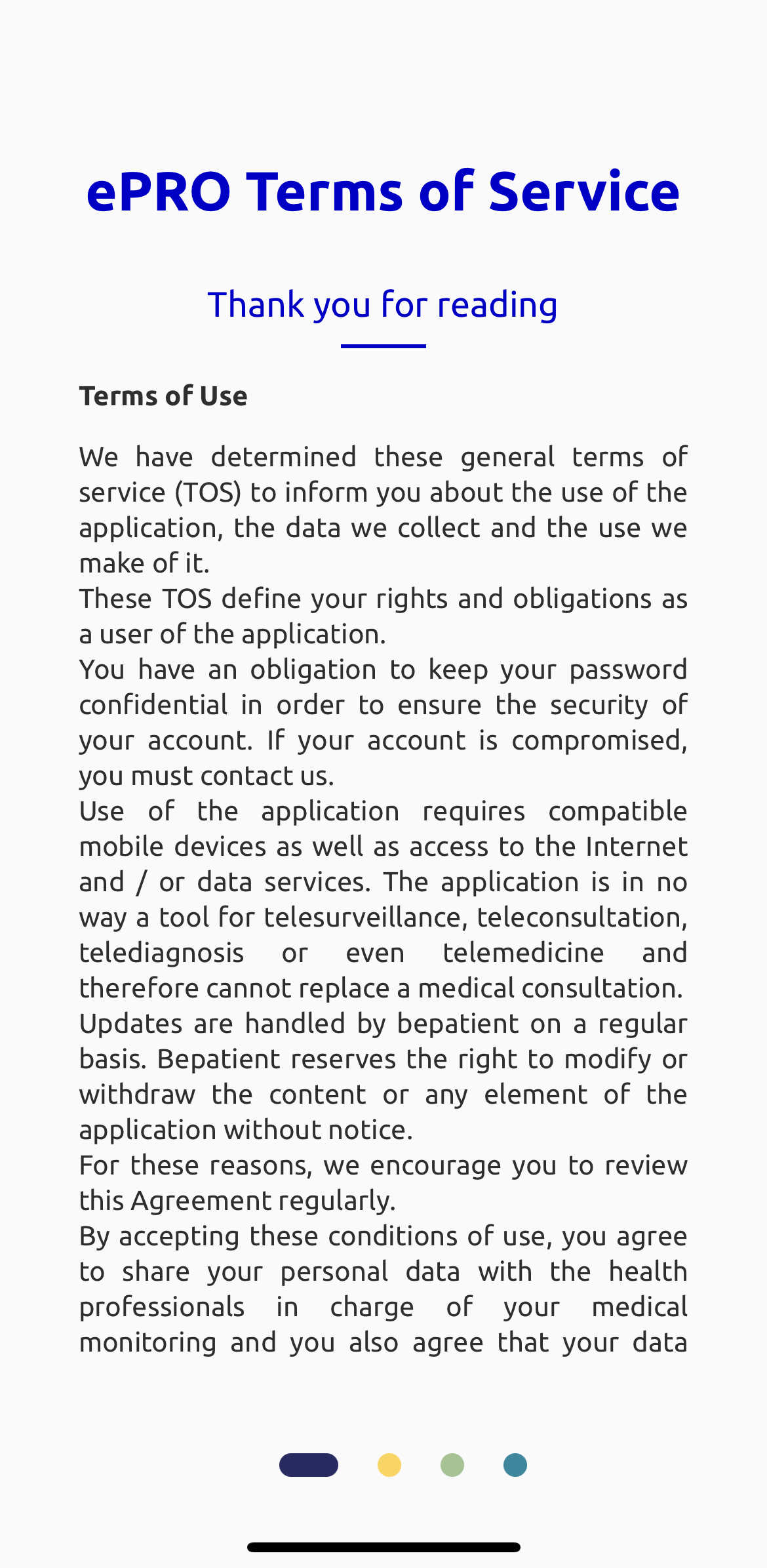
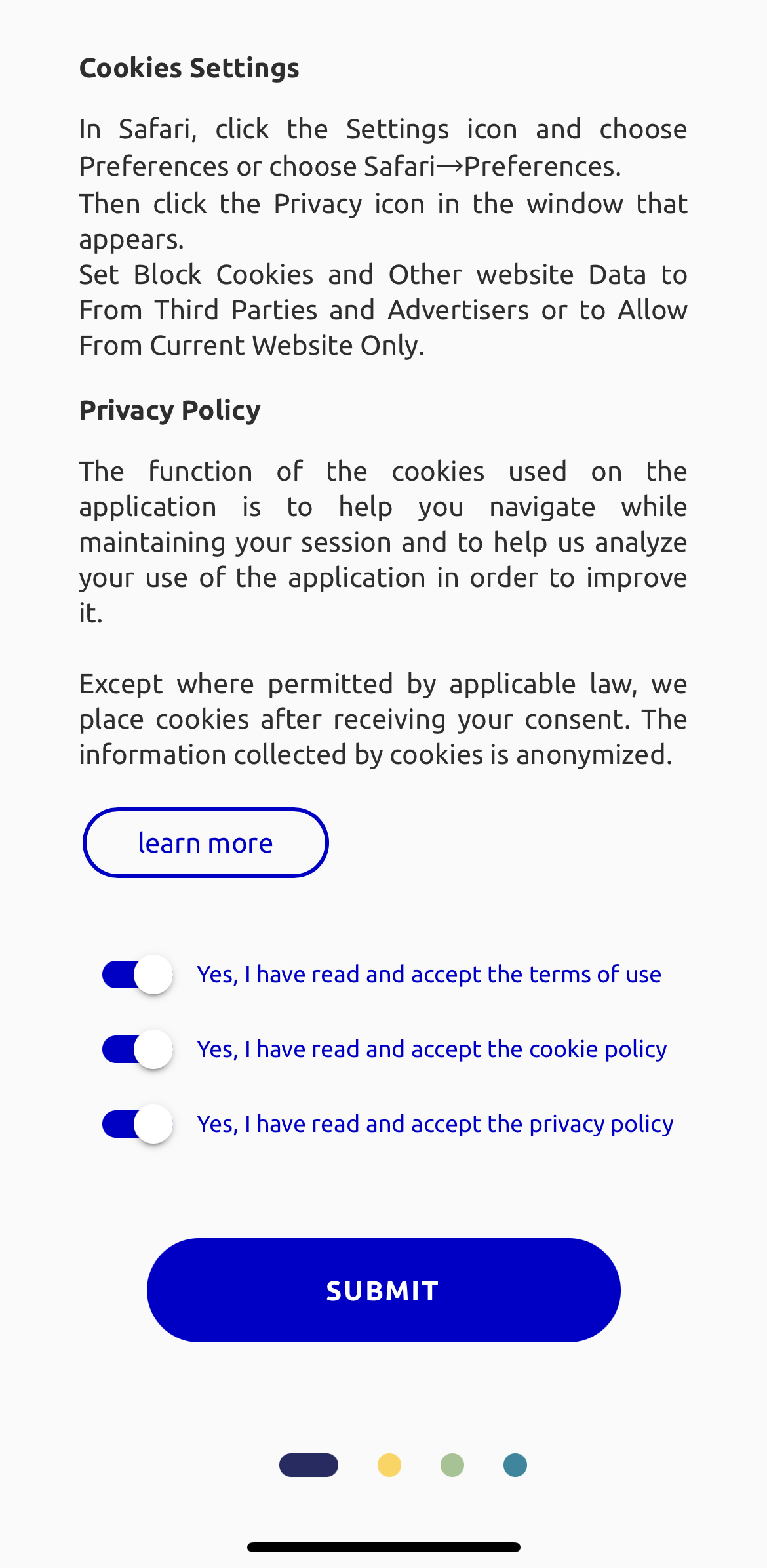
The three fields of initial onboarding TOS are page name, description, and a submit button, out of which submit button is static, and the other two fields are editable.

If you click on ‘1281 – ePRO Terms of Service or a description link, it will open the ‘Terms of Service Page’ here, you can edit the page name and description after editing these fields the changes can be seen on the initial onboarding.

Introduction Page
The introduction page contains three fields title, content, and a next button. The next button is a static button, and the other two fields are editable.
Step 1: To edit the title or a content click on the link, it will open the popup window

Step 2: Click on edit

You can edit the title or content in the English and the French language, click on the update button and then click on cross.

Step 3: Reload the page you can see the updated changes.

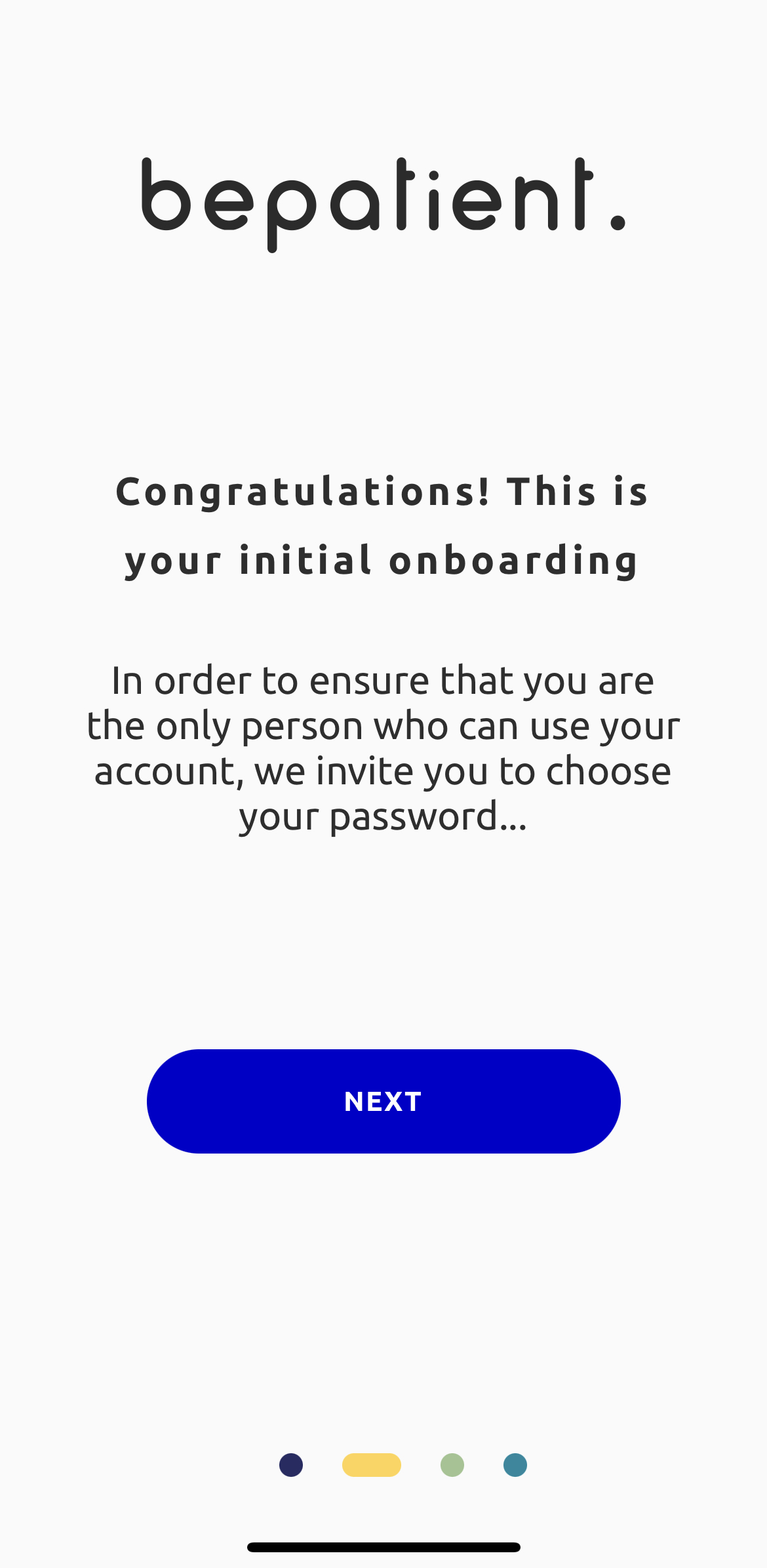
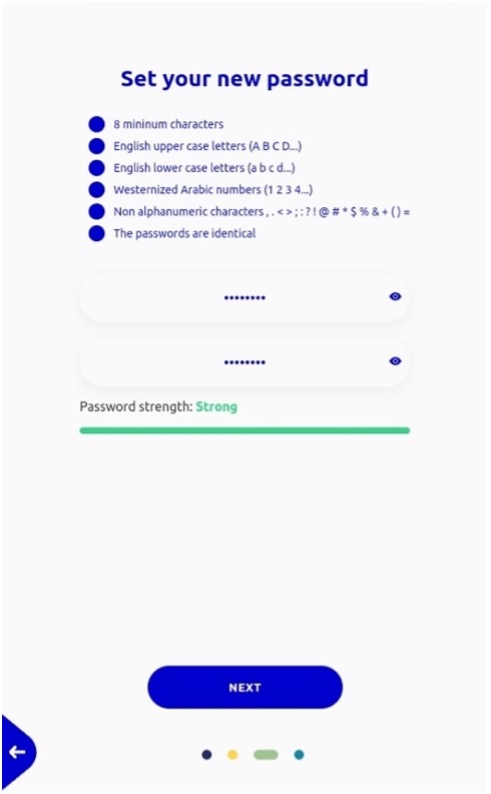
Set a new password
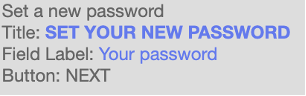
Set a new password page contains three fields title, a field label, and a next button. The next button is static, and the other two fields are editable.
Step 1: To edit the title or a field label click on the link, it will open the popup window
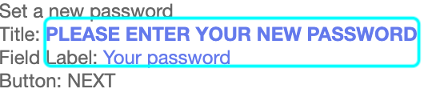
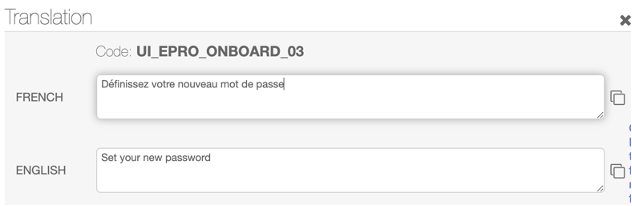
Step 2: Click on edit
You can edit the title or field label in the English and the French language, click on the update button and then click on cross.
Step 3: Reload the page you can see the updated changes.
Final Page
The final page contains three fields title, content, and a button. All three fields are editable.
Step 1: To edit the title or a content click on the link, it will open the popup window
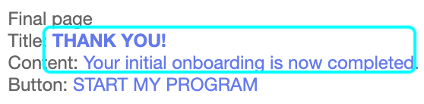
Step 2: Click on edit

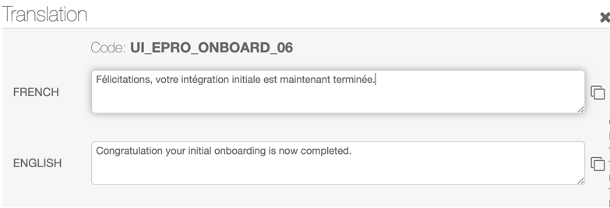
You can edit the title or the content in the English and the French language, click on the update button and then click on cross. Reload the page you can see the updated changes.
Step 3: To edit the button, click on the link

Step 4: It will open the popup window, click on edit

Step 5: Edit the button label in English and the French language, click on the update button and then click on cross.
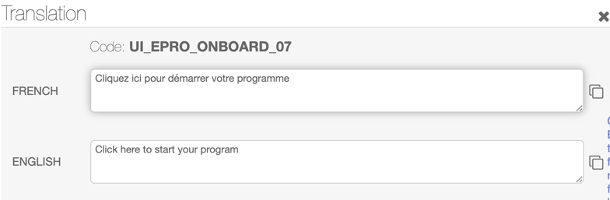
Step 6: Reload the page you can see the updated changes.