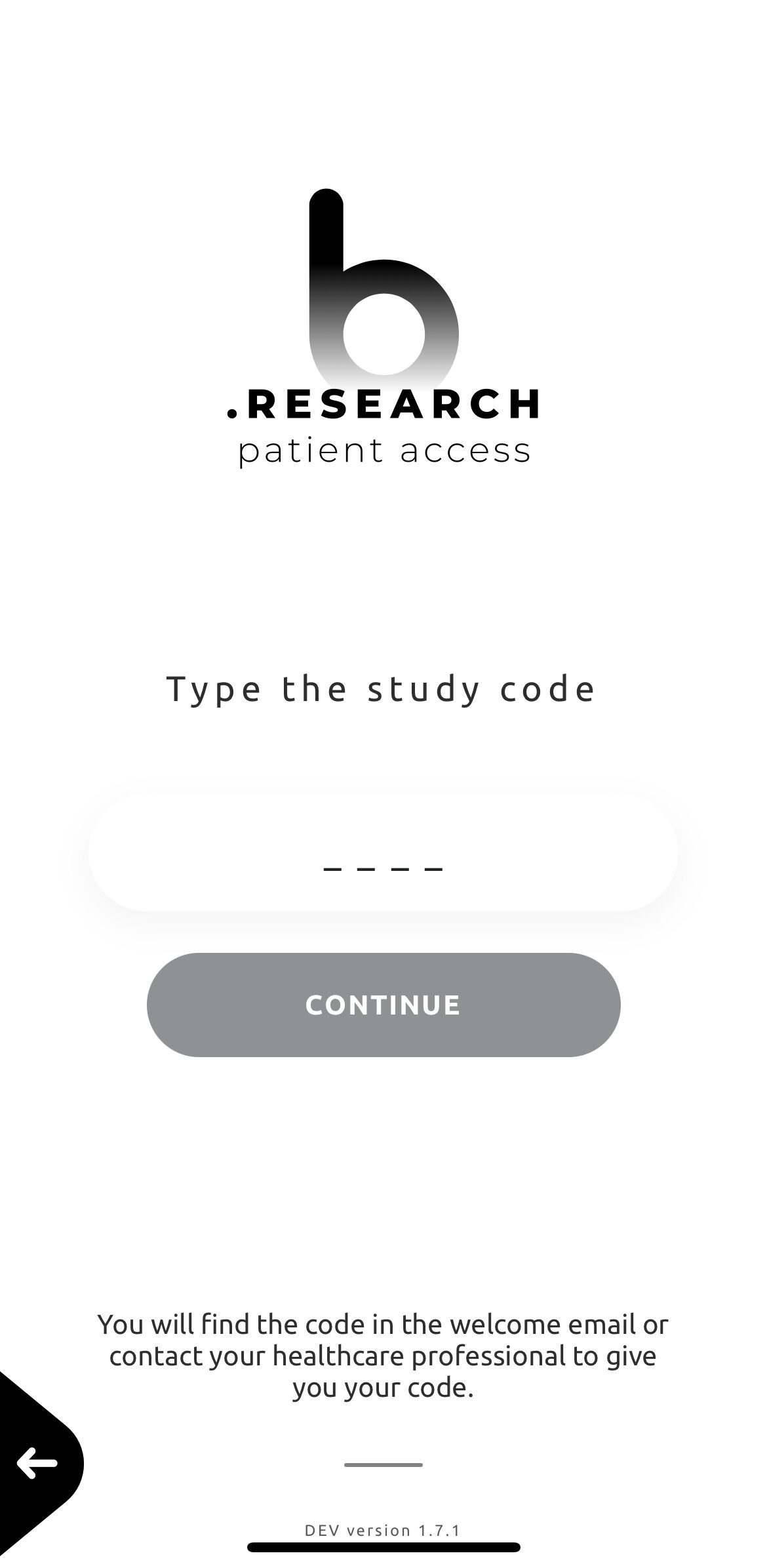
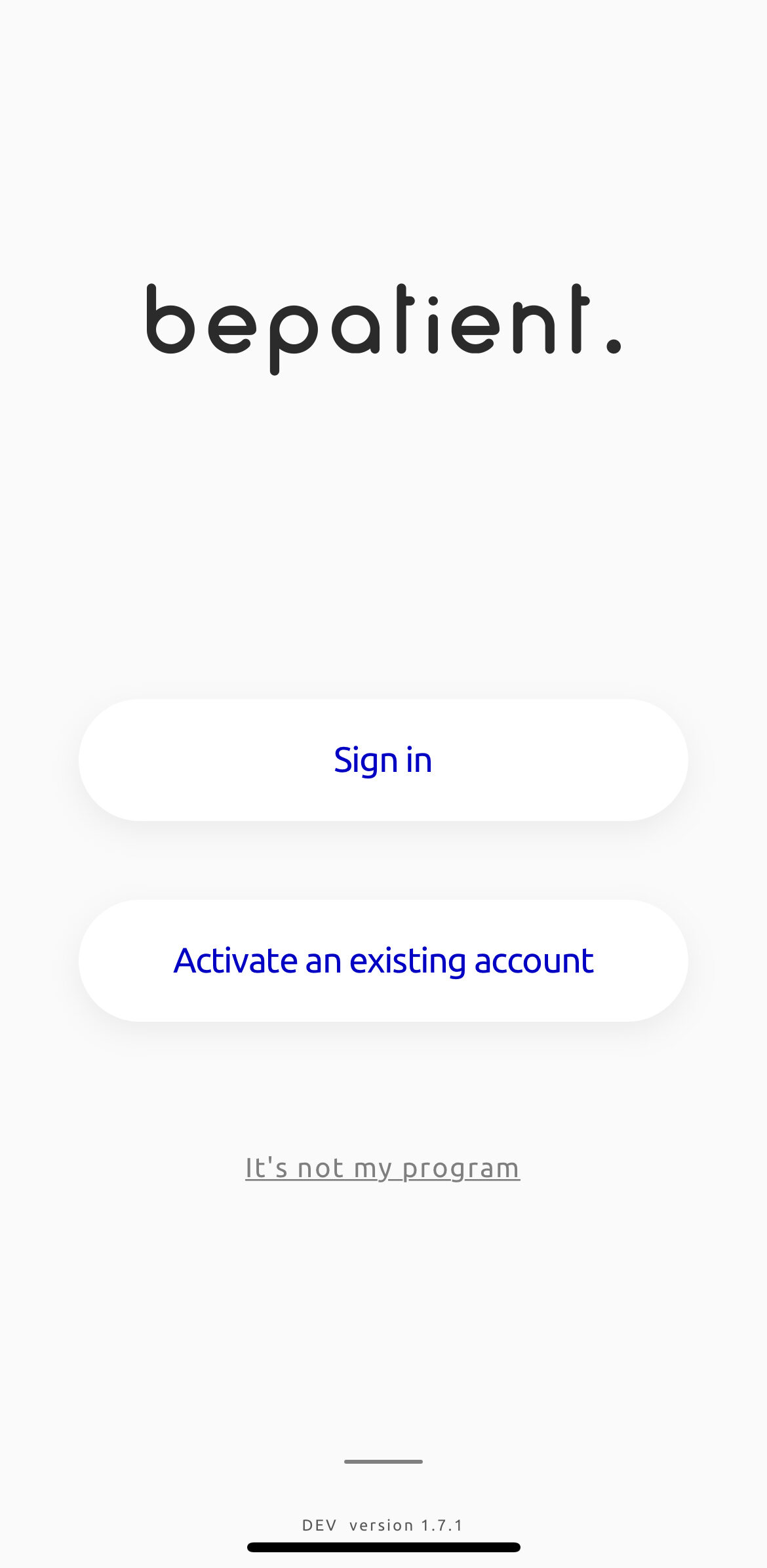
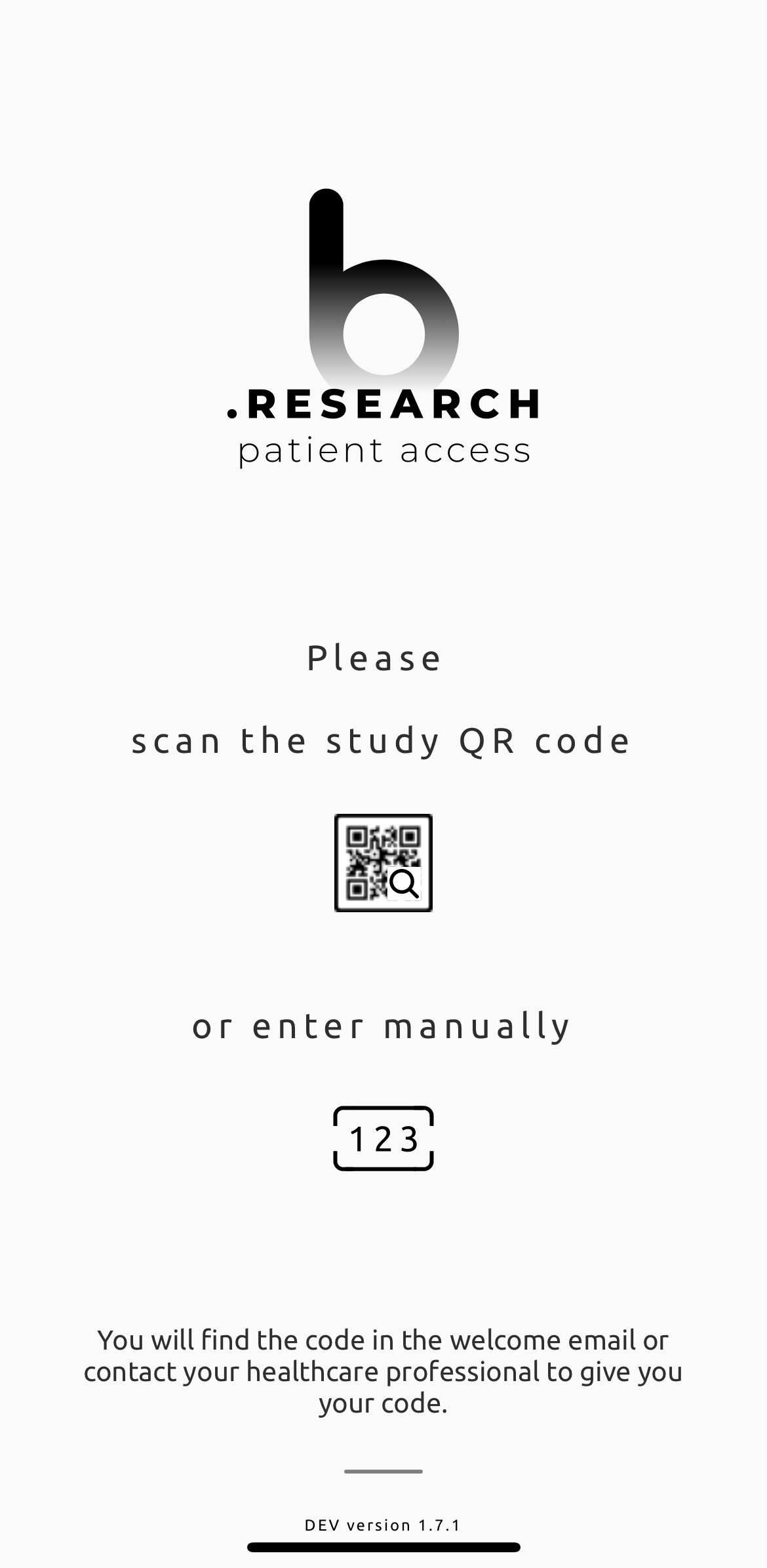
To activate an ePRO you need an instance code which is a unique code for an ePRO user this code is generated automatically and there is a QR code for the same that you can download. Therefor when a patient launches the smart app on the study load page it will ask two things either scan the QR code or enter the instance code manually.
Following are the steps to generate QR Code
Step 1: Click on CRF Building from the Menu, it will redirect to the Welcome Page.

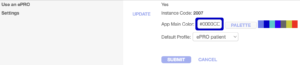
Step 2: Click on UPDATE button of Settings, default value of User an ePRO is set to No, update it to “Yes”, You can set App Main Color and keep Default Profile to “ePRO patient”, Click on SUBMIT button.
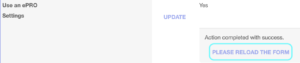
Step 3: Click on PLEASE RELOAD THE FORM, this will generate the QR code on the right corner

When you launch an app, first it will load the study code page in which 2 options are provided scan a study QR code or enter manually.
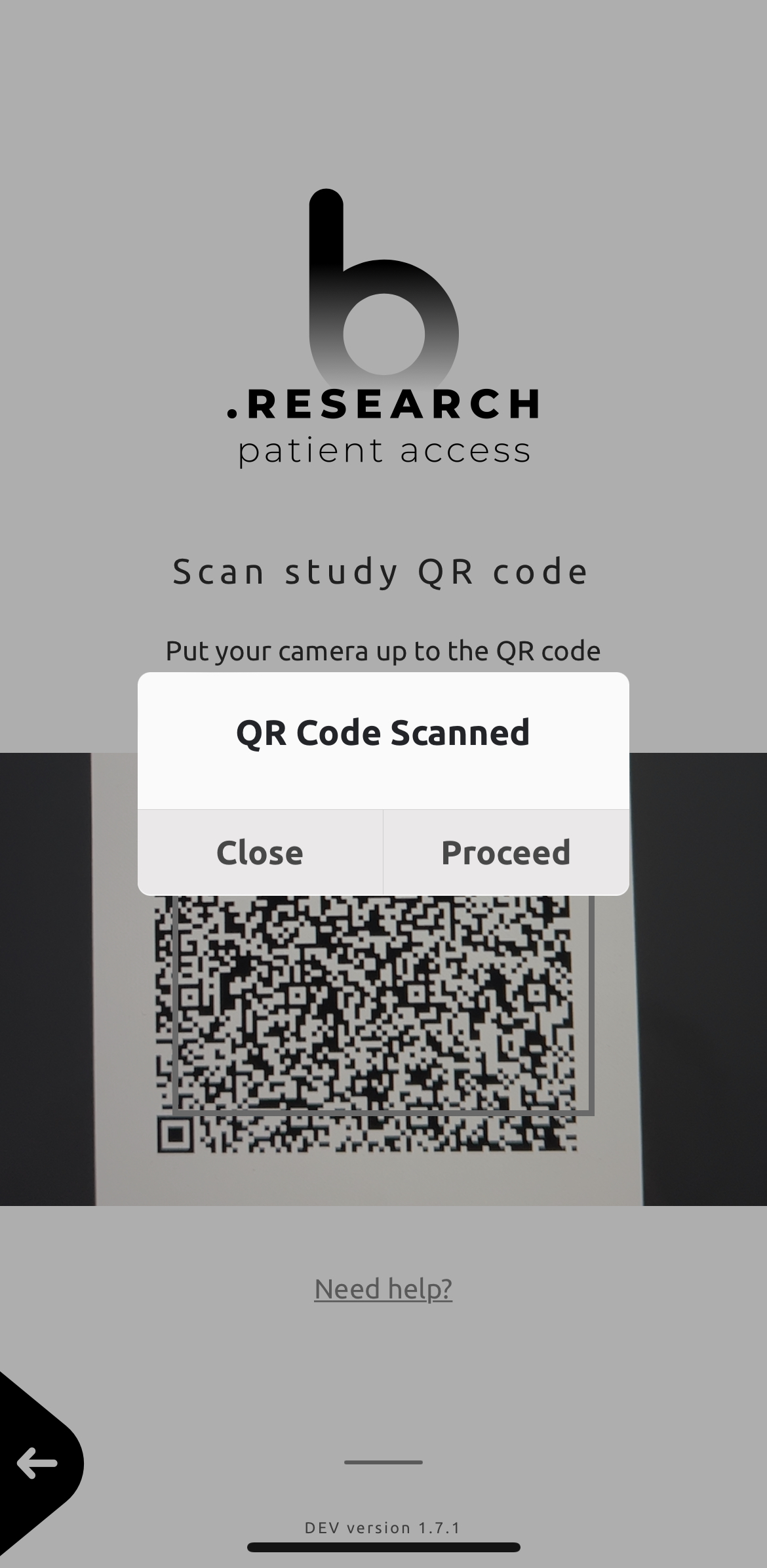
If the QR code option is selected then it will open the QR code page in which you can scan the code, if the code is valid, it will show a popup to proceed if you click on proceed it will redirect to a sign-in page.
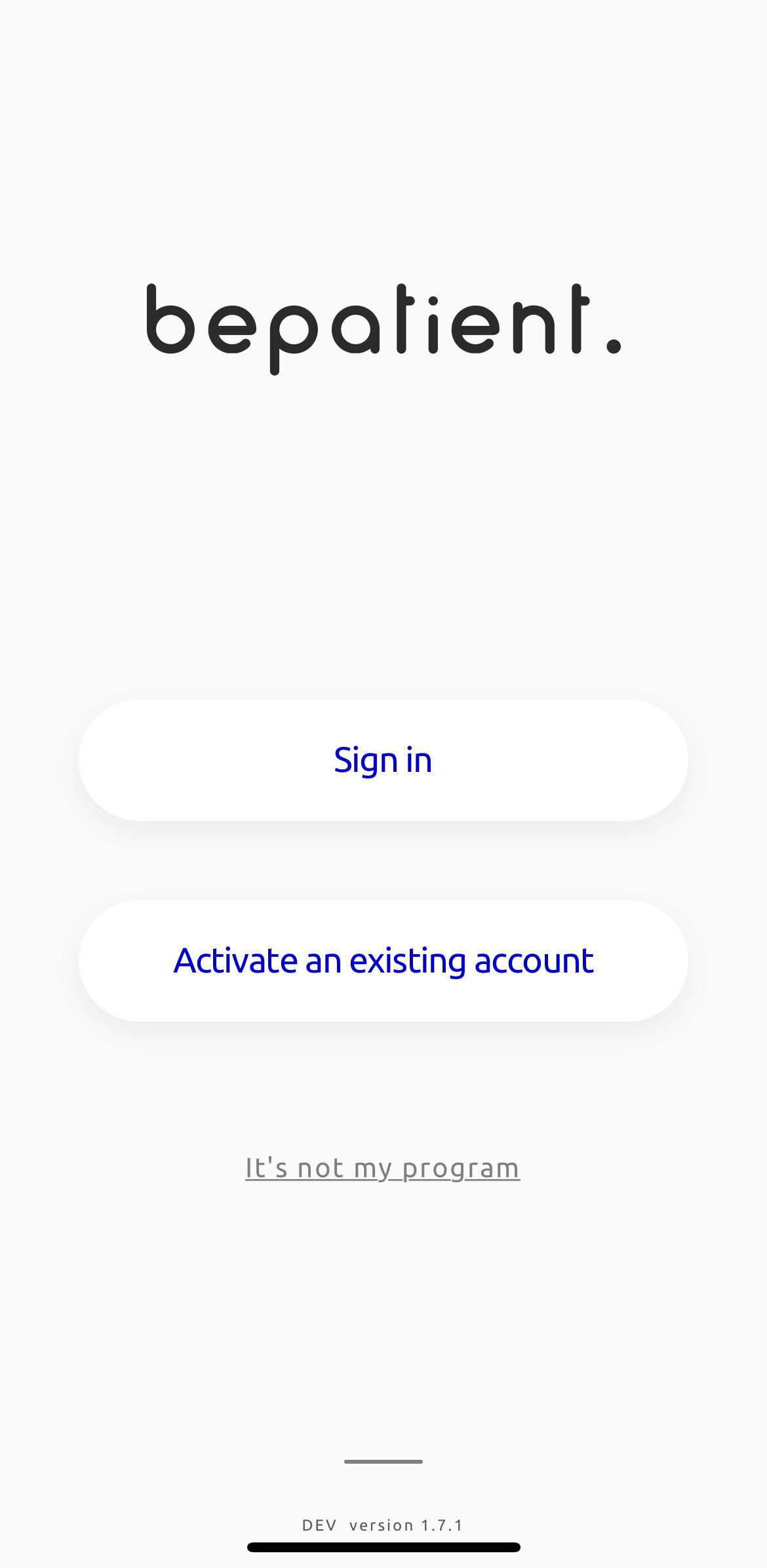
Similarly, if you select enter manually it will open the type code page where you can type the instance code and when click on continue it will display your program sign-in page.