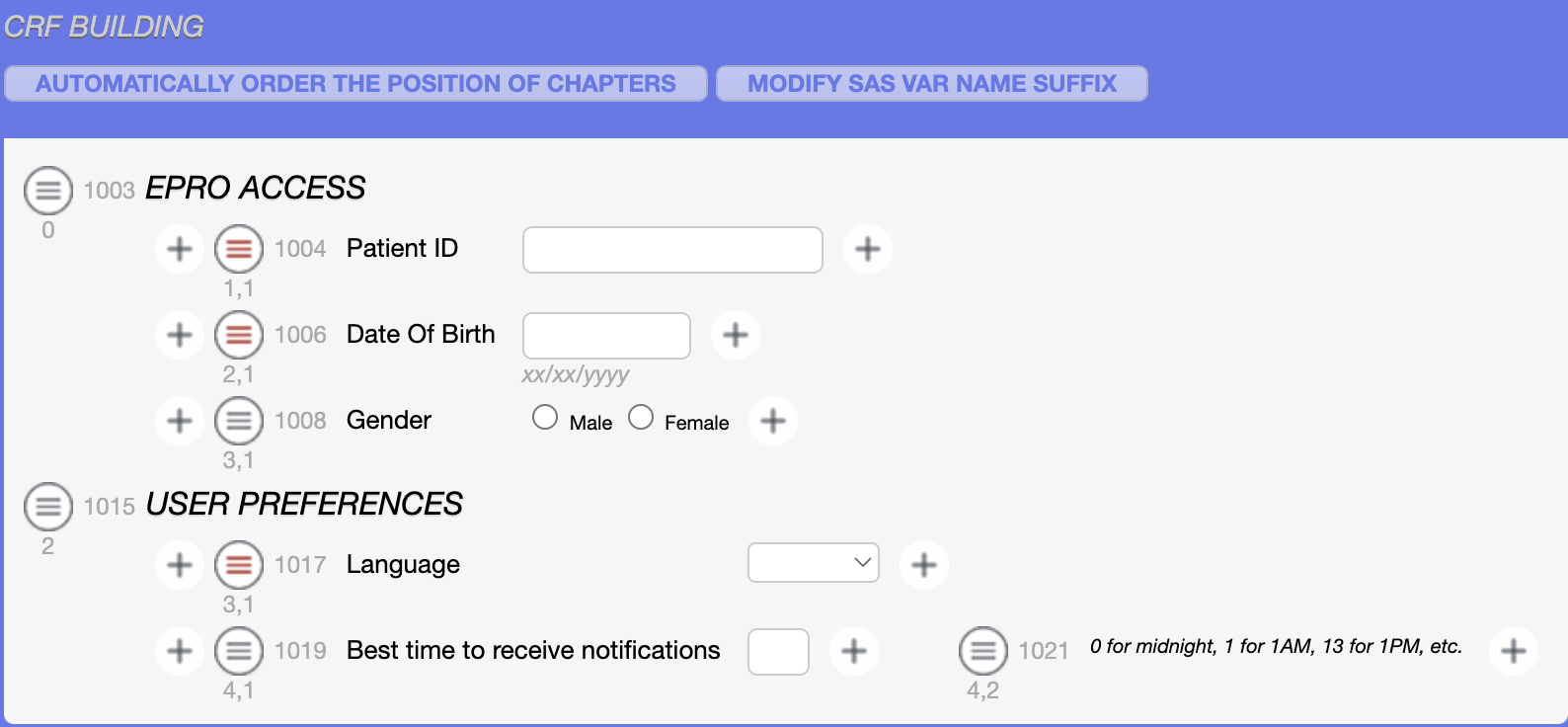
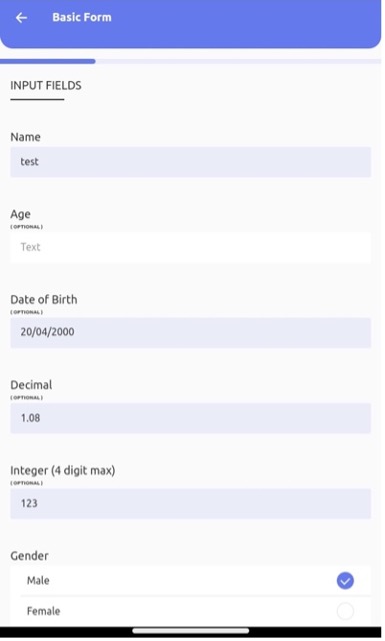
To add a field, you need to add chapter first, and then you can add a field. A page can have many chapters, meaning if you want to add sections on a page that can be done while adding a chapter. For example, in a basic form, if you want to add more than one section, you can add chapters. The progress bar in the application shows when it moves from one chapter to another.
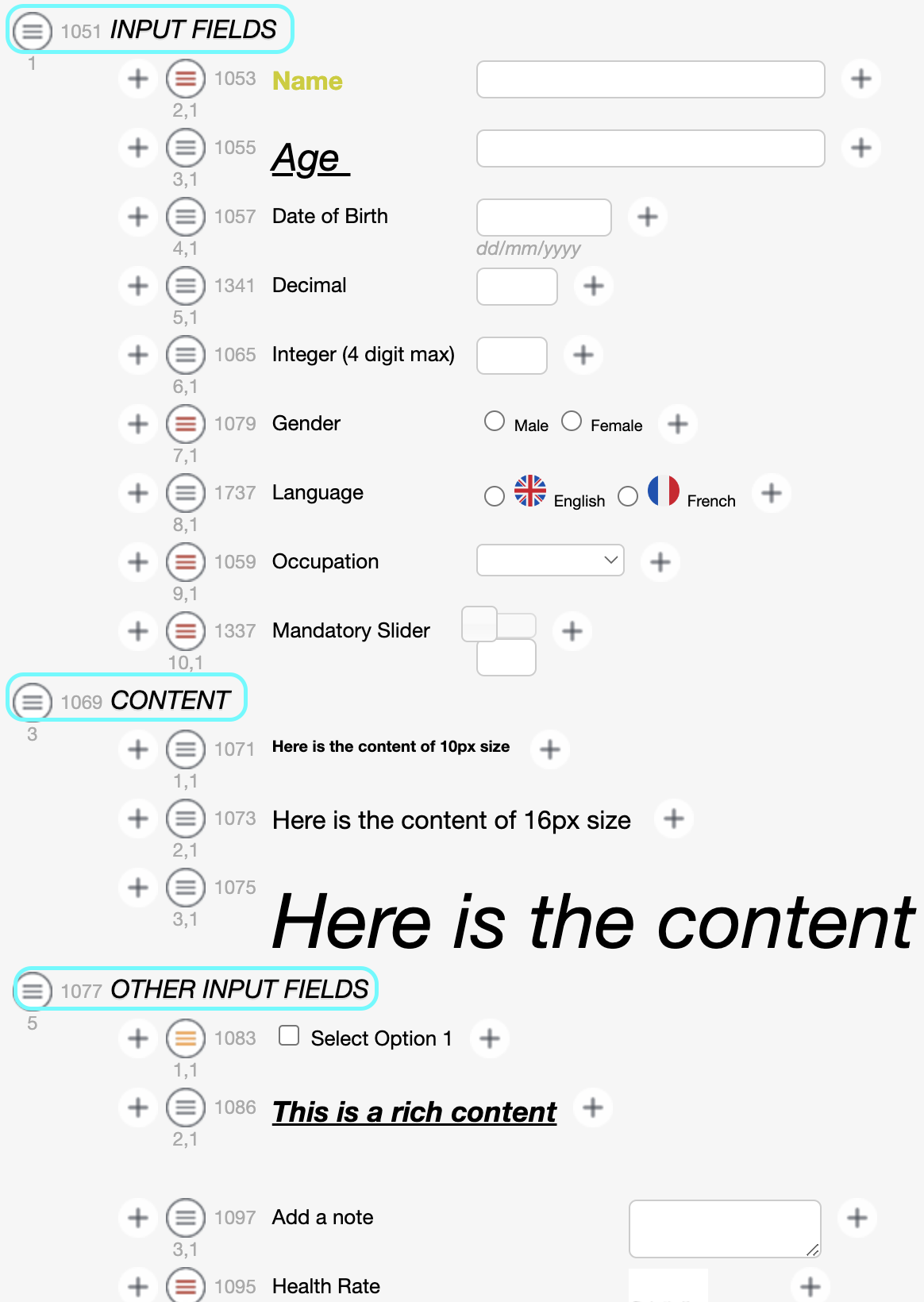

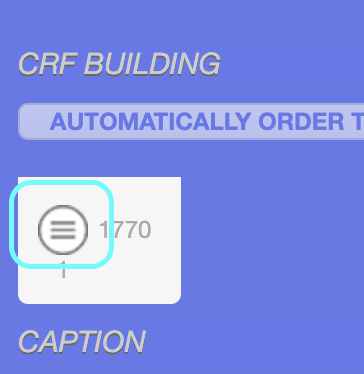
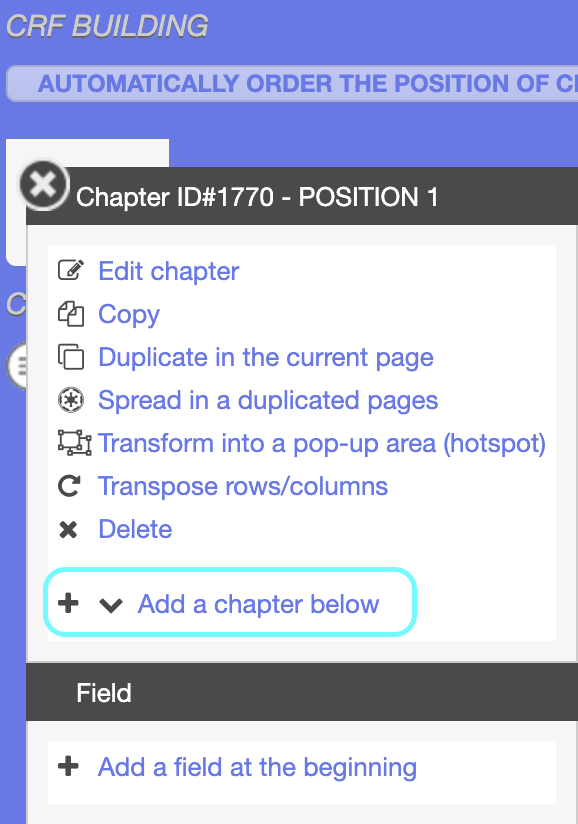
 Step 1: To add a chapter in a Page, click on the Chapter Icon, which is Under CRF BUILDING, it will open the Menu, Select Add a chapter below option
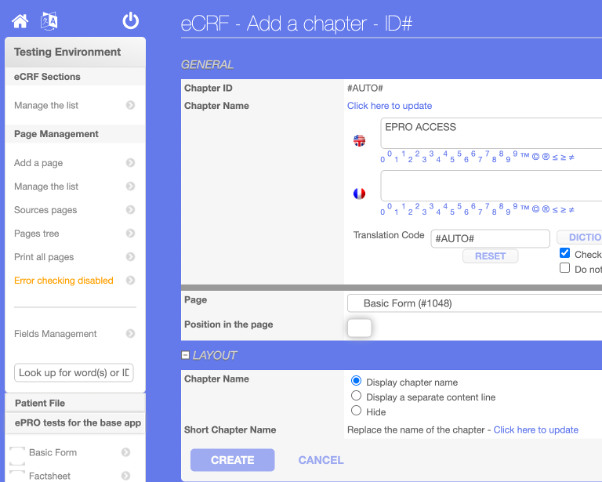
Step 2: Enter Chapter Name, Select Page from the dropdown where you want to add this chapter and Click on CREATE button
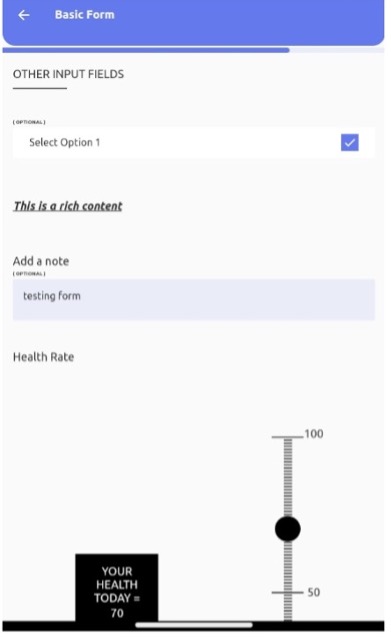
This is how it will look when you add a chapter
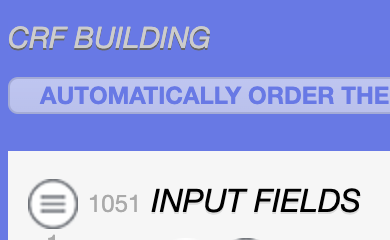
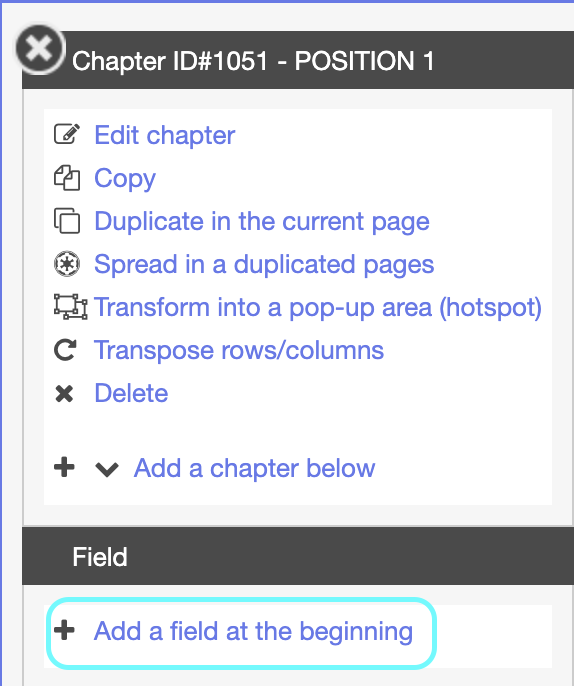
Step 3: To add a field under chapter, click on chapter menu icon and select “Add a field at the beginning”
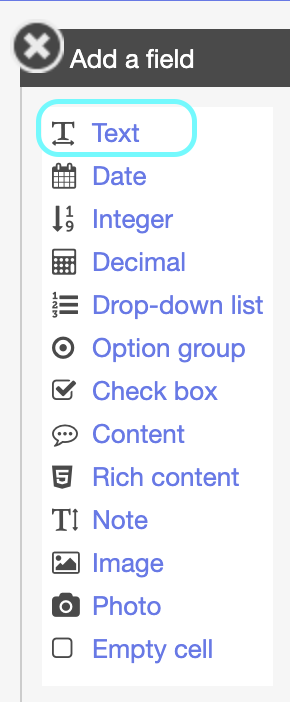
Step 4: Select Text field from the menu, it will open the Add a field page
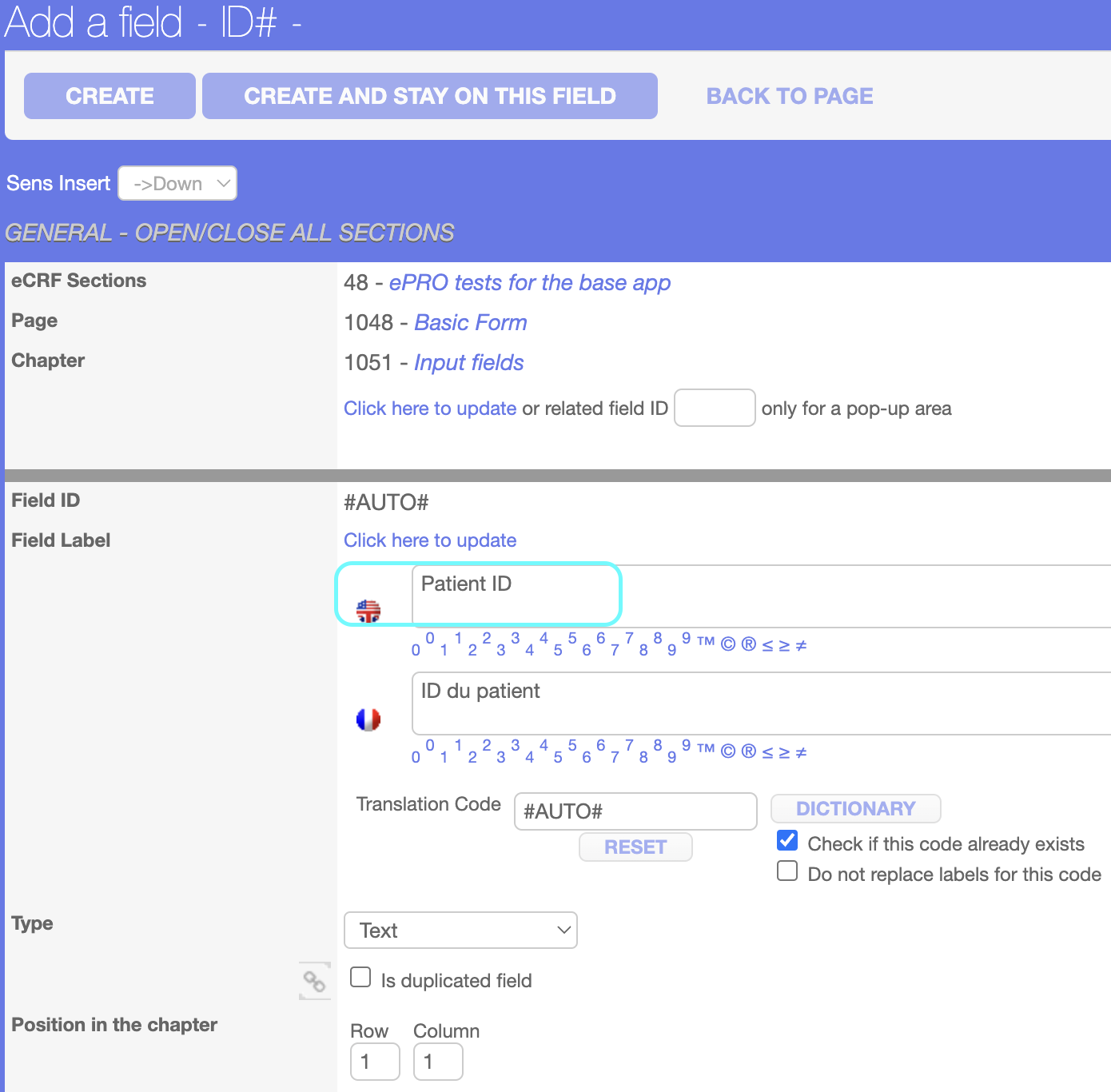
Step 5: Under GENERAL – OPEN/CLOSE ALL SECTIONS, add Field Label
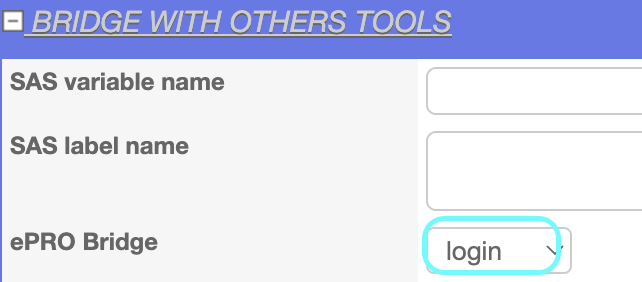
Step 6: Under BRIDGE WITH OTHERS TOOLS section, select “login” from ePRO Bridge dropdown and Click on CREATE button (ePRO bridge can be set for login, birthdate, gender, and language fields as these fields are the main four fields to create an patient)