Each page created must contain at least one chapter and each chapter must contain at least one field.
Chapters are used to organise fields and can define the CRF tables by adding a chapter name.
Additional chapters without names can be added to facilitate page construction (this is the case if you want to group some fields together).
When a new page is created, one chapter is already available.
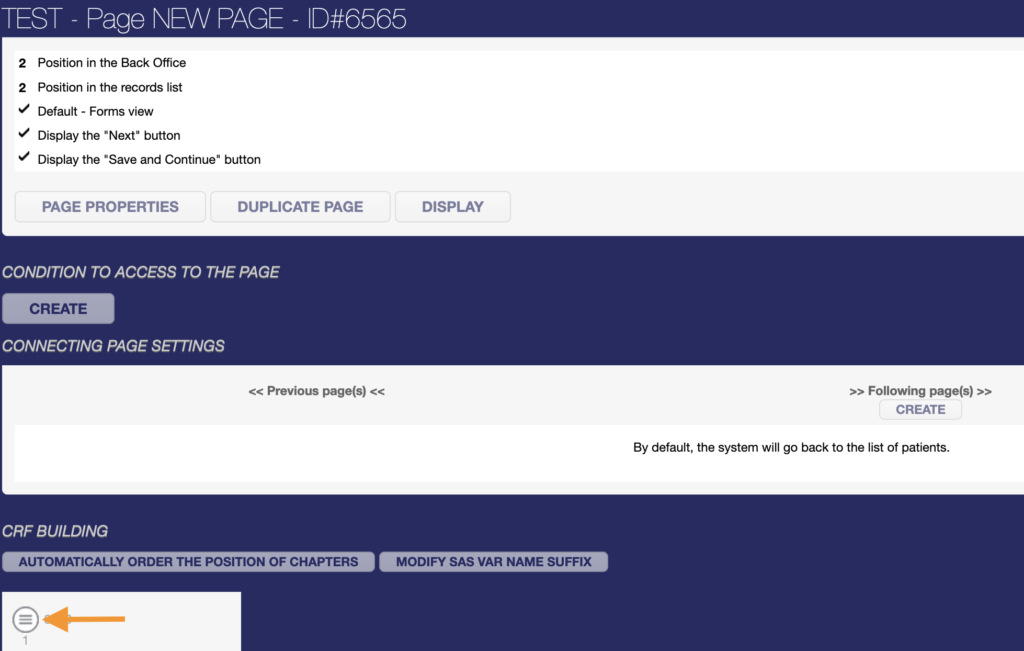
To add more chapters to your page, click on the burger button of the first chapter.
Then click on ‘Add a chapter below’.
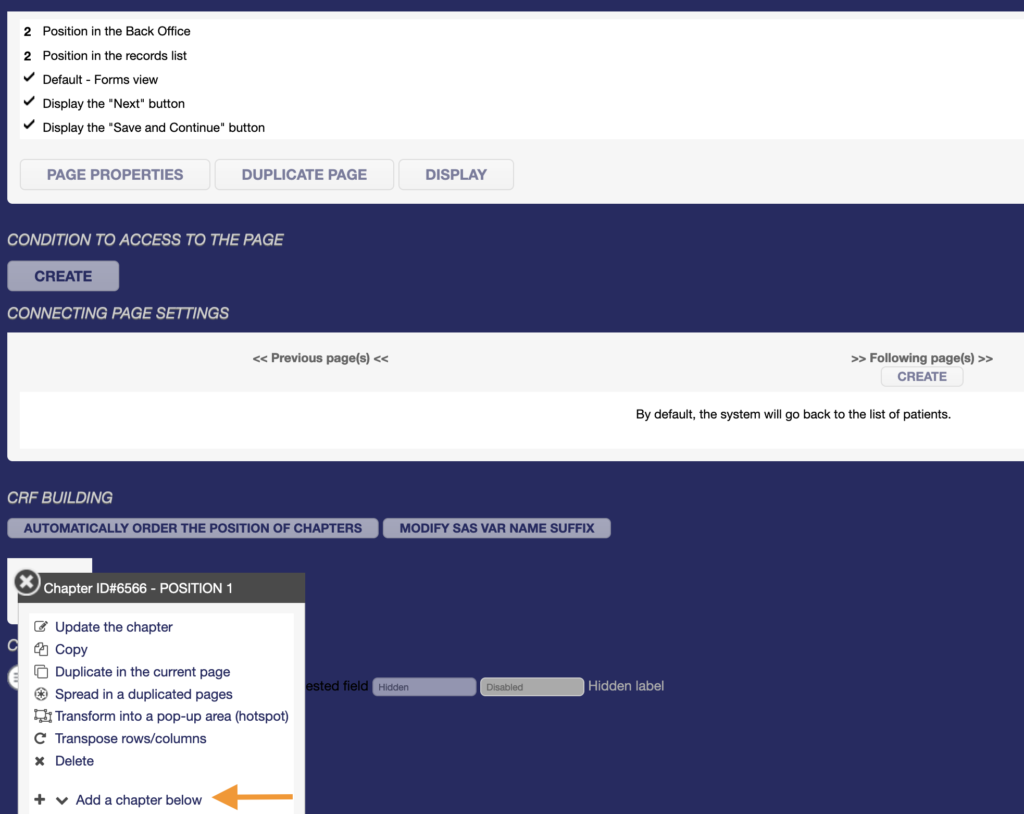
If your page already has chapters, you can click on the burger button of any existing chapter to add a new chapter below it.
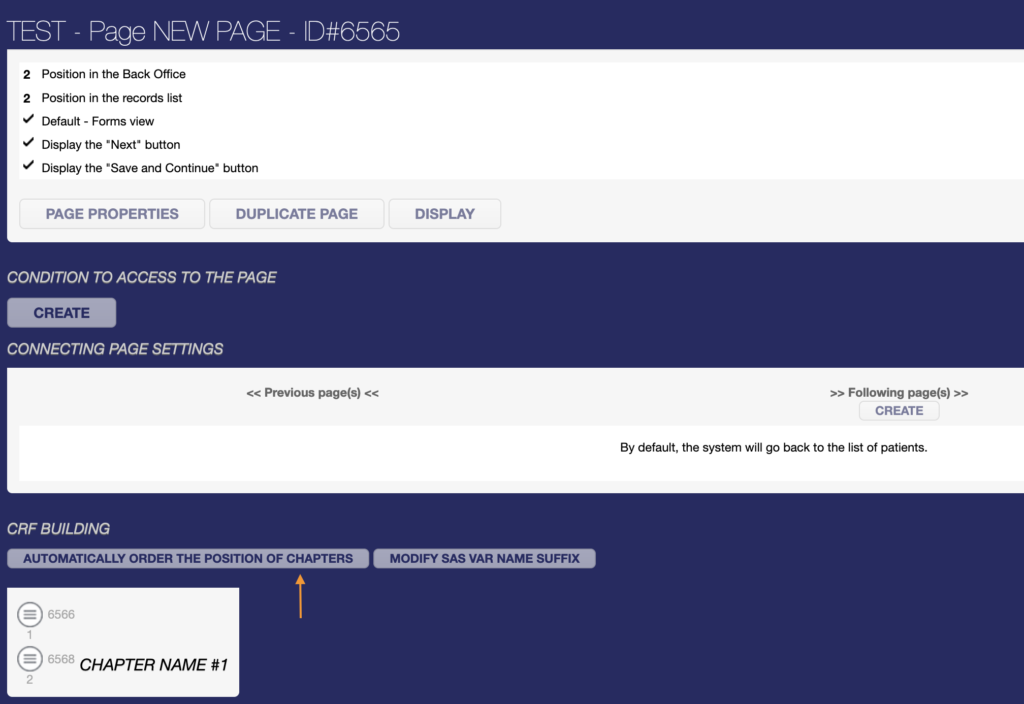
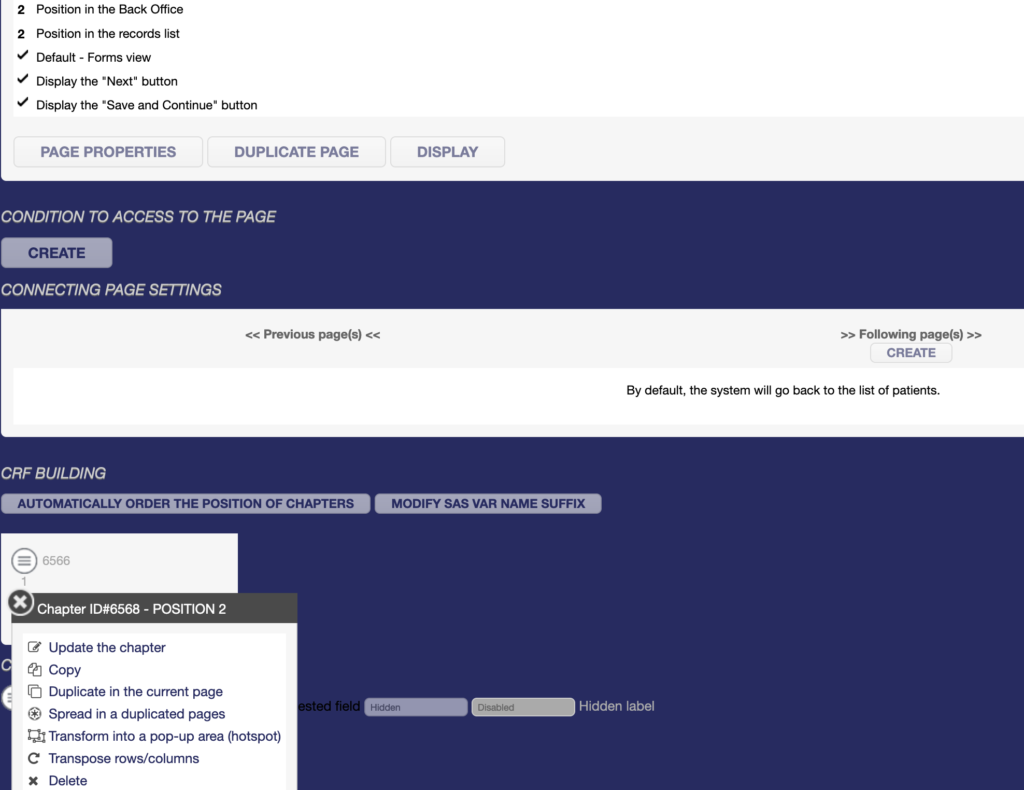
You can automatically reorder the position number of each chapter on the page by clicking on « Automatically order the position of chapters ». This will not change the organisation of the chapters on the page, only the position number. If the page is duplicated, clicking on the button in the source page will also reorder chapters in the duplicata.
When you click on the burger button of a created chapter, several options are available:
- Update the chapter to define the chapter properties,
- Copy to copy and paste the chapter to any page of the eCRF,
- Duplicate in the current page,
- Spread in duplicated pages if the page has been duplicated,
- Transpose rows/columns,
- Delete.
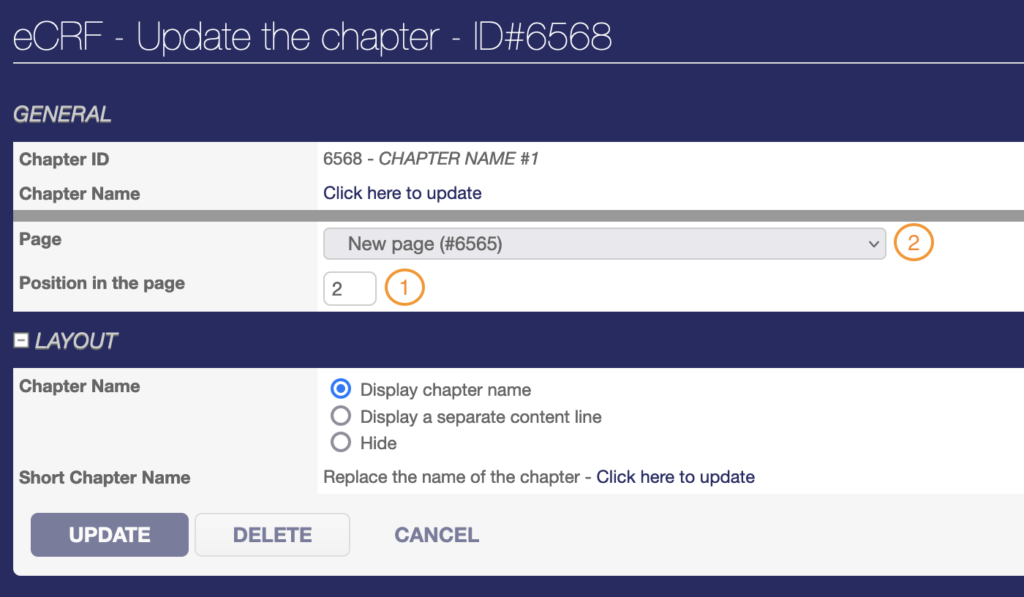
- Update the chapter
Allows you to set the position of the chapter on the current page or move it to another page.
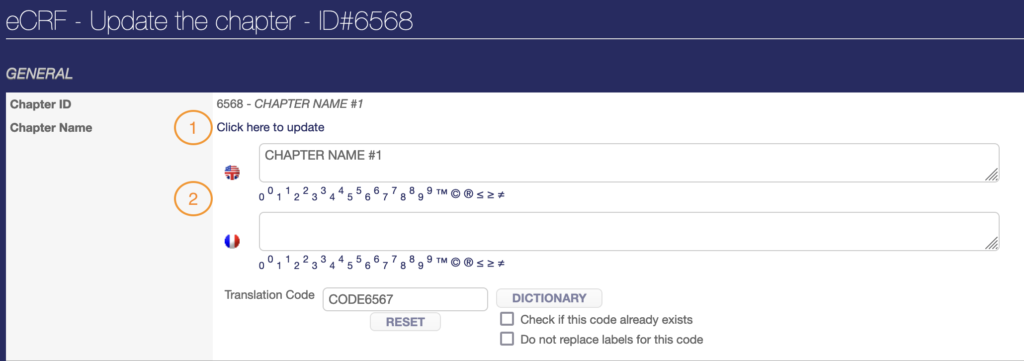
You can add or change the chapter name. For some projects, several languages may be activated. In this case, for each label, you’ll find several boxes to add the translation. Each language box is associated with the country flag. Here, the first box corresponds to English and the second to French.
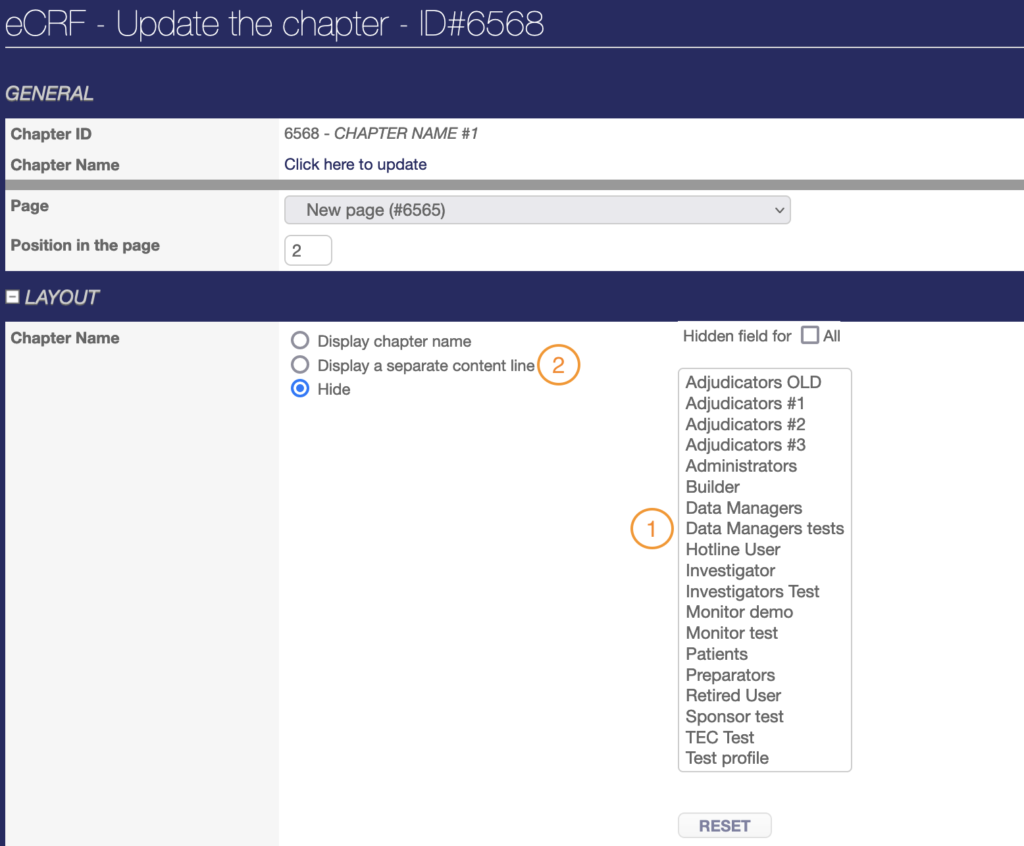
In the Layout section, you can also choose to hide the chapter for certain user profiles. It is also possible to display a separate content line, which appears as a thin white line in the Front Office, in which case the chapter name must be empty.
3. Duplicate in the current page
You can also duplicate the chapter on the current page as many times as required by clicking Duplicate on the current page.
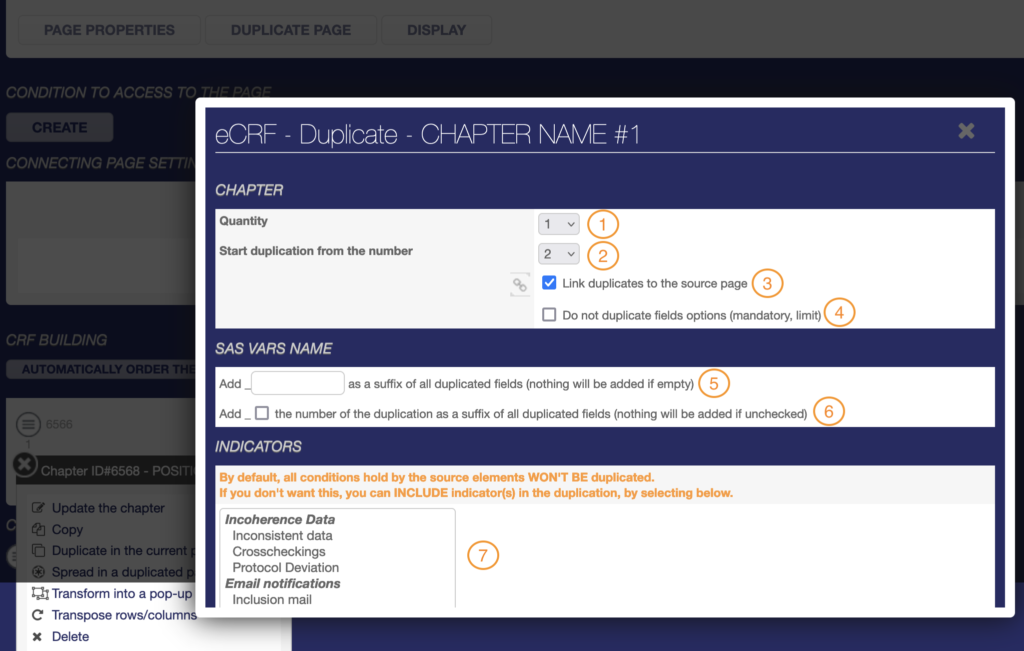
CHAPTER part
You can define the number of copies of the chapter to be created by selecting the Quantity.
Then you can define the number from which to start duplicating. This option is useful if the chapter to be duplicated contains SAS VAR NAME fields. Usually, the number from which to start the duplication form is 2.
Duplicated fields (with SAS VAR NAME) in duplicated chapters should be linked to the source fields in the source chapter for the exports to be correct. Therefore, the option « Link duplicates to source page » should be checked.
The option « Do not duplicate field options (mandatory, limit) » should only be checked if the controls related to the fields to be duplicated are not needed for the duplicates.
SAS VAR NAME part
You can also add a suffix identical to the SAS VAR NAME of all duplicated fields in the duplicated chapters by entering the value of the suffix in the « Add _ (…) » insert. The suffix is automatically prefixed with a _ in the SAS VAR NAMES.
To add the number from which to start the duplication (defined in the CHAPTER part), you must tick the option « Add the number of the duplication as a suffix to all duplicated fields ». This number is automatically preceded by a _ in the SAS VAR NAMES and is placed after the suffix if one is defined.
INDICATORS part
Finally, you can select the indicators (crosschecks) linked to the source fields in the source chapter to be duplicated in the duplicated fields. By default, all linked indicators DON’T get duplicated.
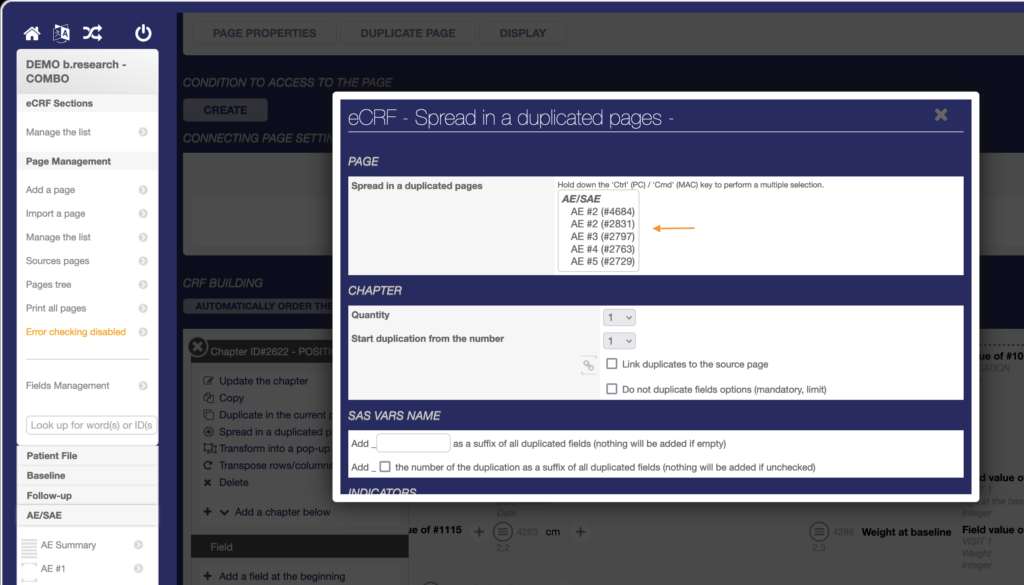
4. Spread in duplicated pages
If the source page containing the chapter to be duplicated has been duplicated, you can select in which duplicated page(s) to spread the new chapter. The position of the chapter will be identical in the source page and in the duplicated page(s).
Chapter spreading is based on the same concept as duplication and offers the same configuration options. Before spreading any chapter, you should click on « Automatically order the position of chapters » in the source page.