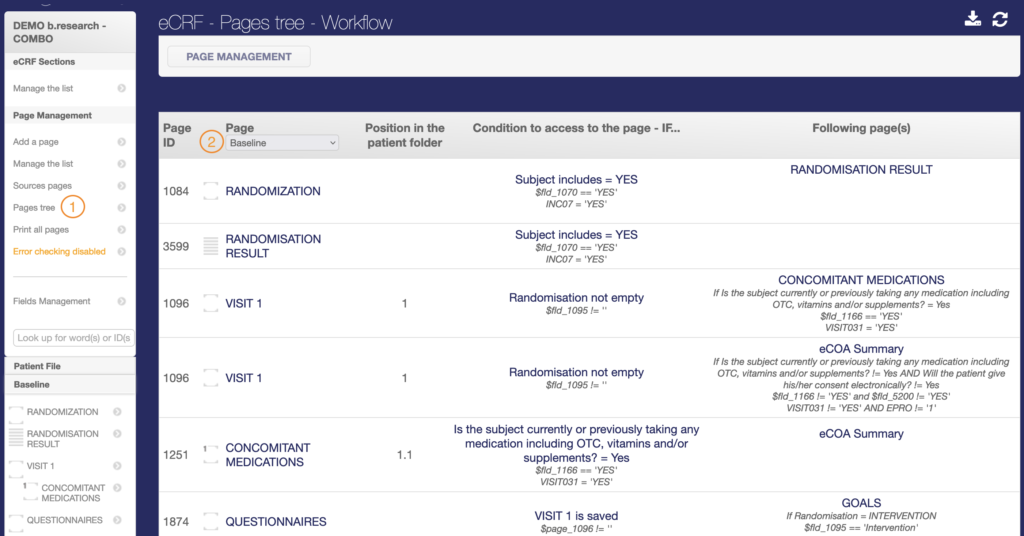
Setting up the workflow for a study is based on adding page access conditions and setting up page links for each page in the eCRF.
PAGE ACCESS CONDITIONS Part
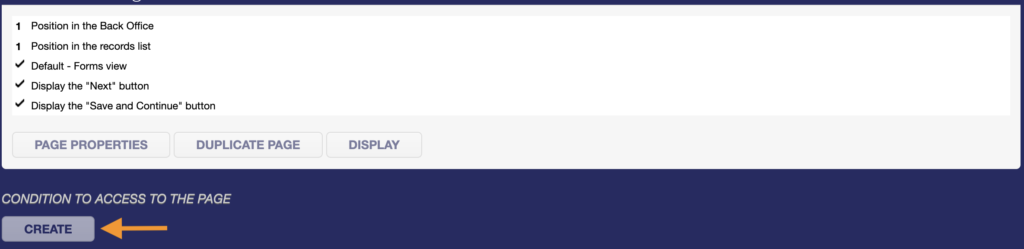
To add access conditions to a page, you can click on Create at the top of your page.
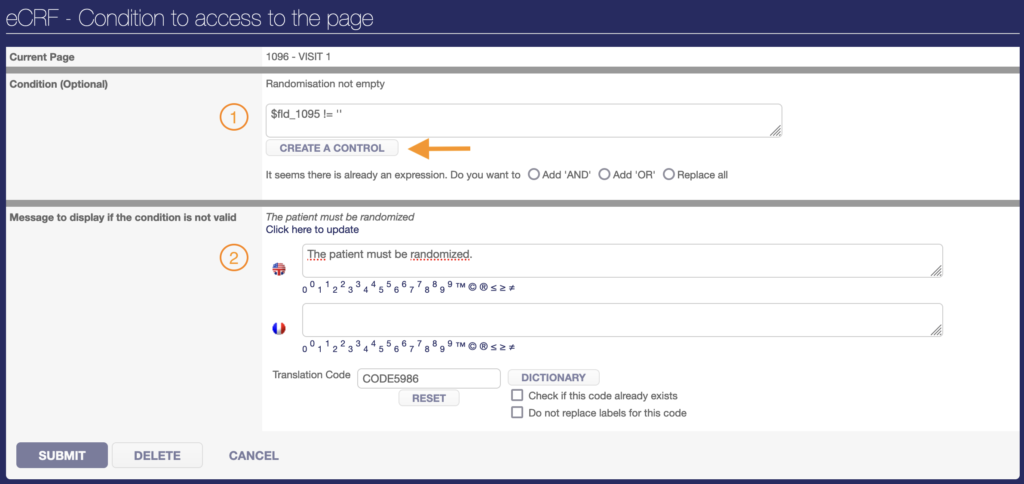
In the condition insert, you can create a control that depends on the status of a page (not entered, saved, signed, etc.), the value of a field, or the status of an indicator. You can also add a message to be displayed if the user tries to access the page when the condition is invalid. Once you have finished creating your condition, submit it.
If the page is to be accessible for a specific period of time, you need to think about adding an access condition in this way:
For example,
The page must be accessible 7 days after patient inclusion and up to 3 months after inclusion.
I can translate this as Inclusion date + 7 days must be prior to or equal to today’s date and Inclusion date + 3 months must be later than or equal to today’s date.
This translates into $fld_XXXX+ 7D <= TODAY and $fld_XXXX +3M >= TODAY.
However, SMART doesn’t take an operation into account when one of the terms is a field, so it’s necessary to move the numerical term to the other side of the inequation for the expression to work.
Finally, the expression results in $fld_XXXX <= TODAY -7D and $fld_XXXX >= TODAY – 3M.
XXXX in this example must be replaced by the Inclusion Date field ID.
CONNECTING PAGE SETTINGS part
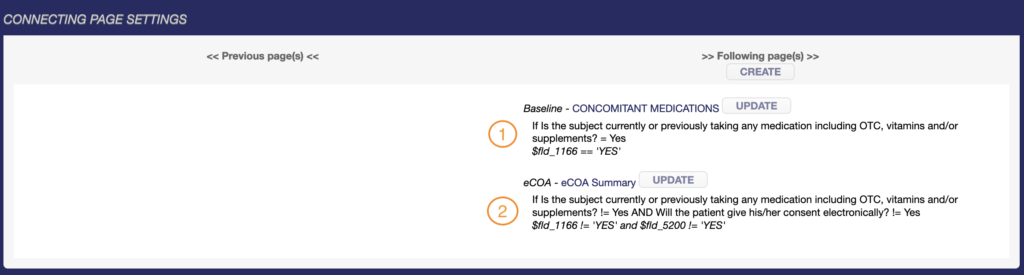
To add a connecting page, you can click on Create below >> Following page(s)

You can select the page you want to open after saving the current page by clicking on Select a CRF page. You can also add a condition to link to the next page by clicking on Create a control and defining the condition.
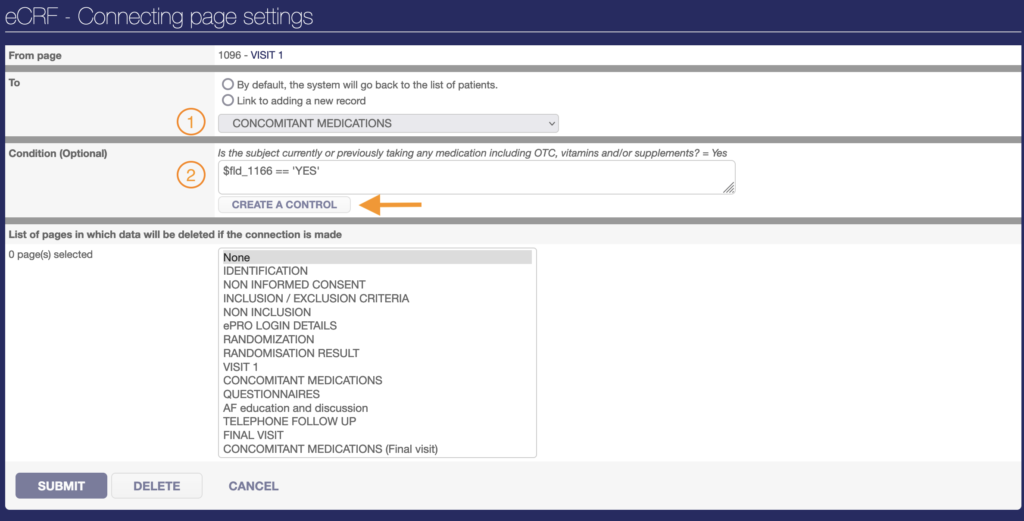
Several pages can be defined as next pages to the current page. In this case, you must ensure that the conditions allow the system to open the correct next page once the current page has been saved.
Finally, you can view the workflow of existing pages by section in the page tree module available in the box on the left in the Back-Office.