To create a selection criteria page, start by adding a simple page. See Pages – Add a page.
However, it is common for the selection criteria to be located on the same page as the fields generating the patient ID. In this case, the chapters and fields of the selection criteria should be added directly to the first page of the eCRF.
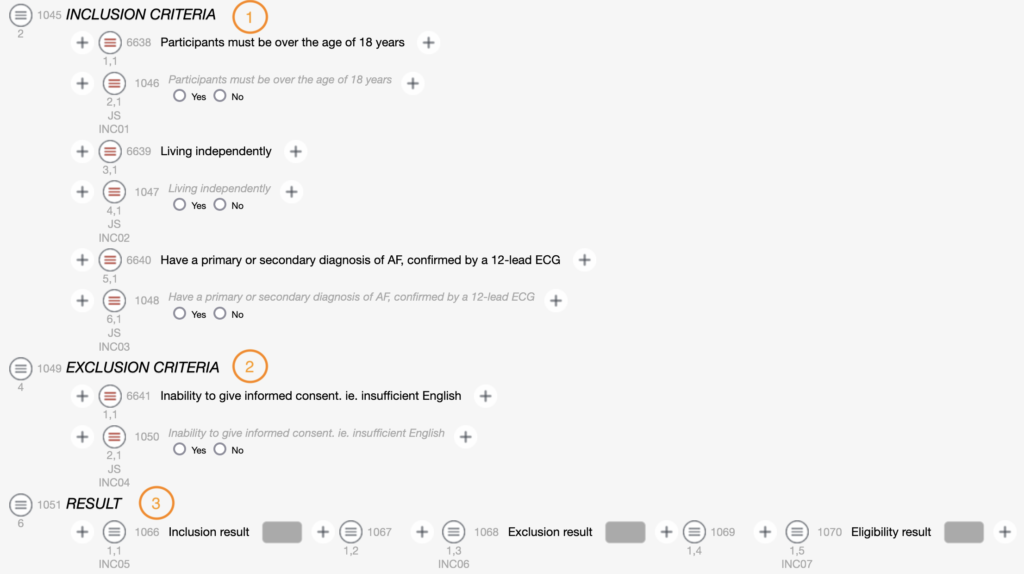
Start by 3 chapters: the first called INCLUSION CRITERIA (1) will contain all the inclusion criteria, the second called EXCLUSION CRITERIA (2) will contain all the exclusion criteria and the third called ELIGIBILITY RESULT (3) will contain the 3 fields to calculate the eligibility result.
Criteria are usually configured as mandatory blocking fields to ensure that each criterion is completed.
Create two fields for each criterion:
- a content field with the label of the criterion defined as mandatory value in the FIELD VALUE part.
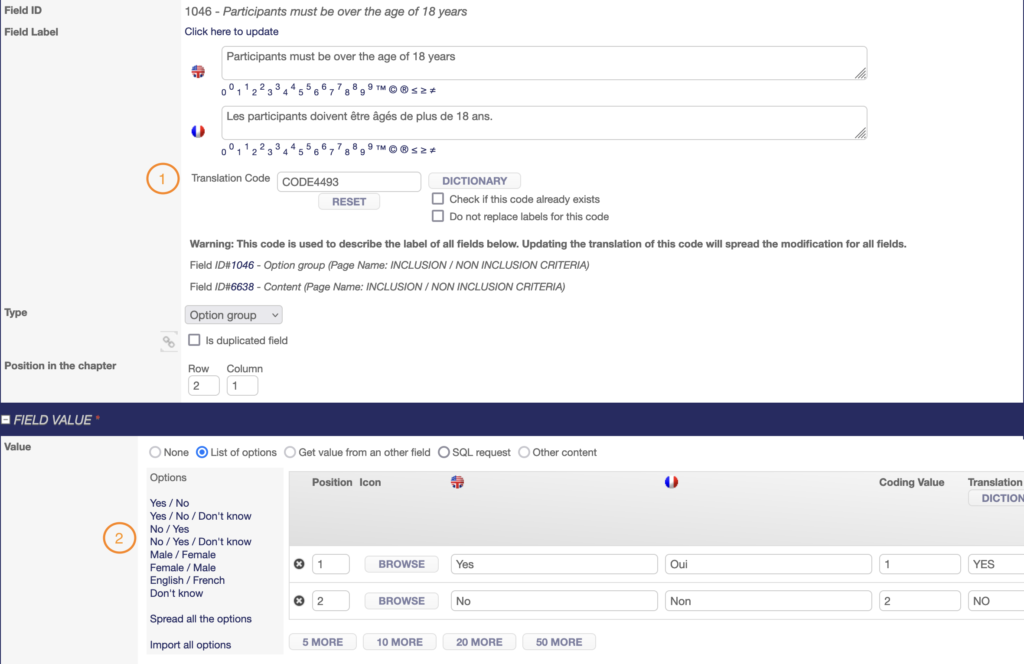
- an option group field defined as mandatory value in the FIELD VALUE part on the line below with the label of the criterion (use the same Translation Code as for the content field), the « Yes » and « No » options and the SAS VAR NAME.
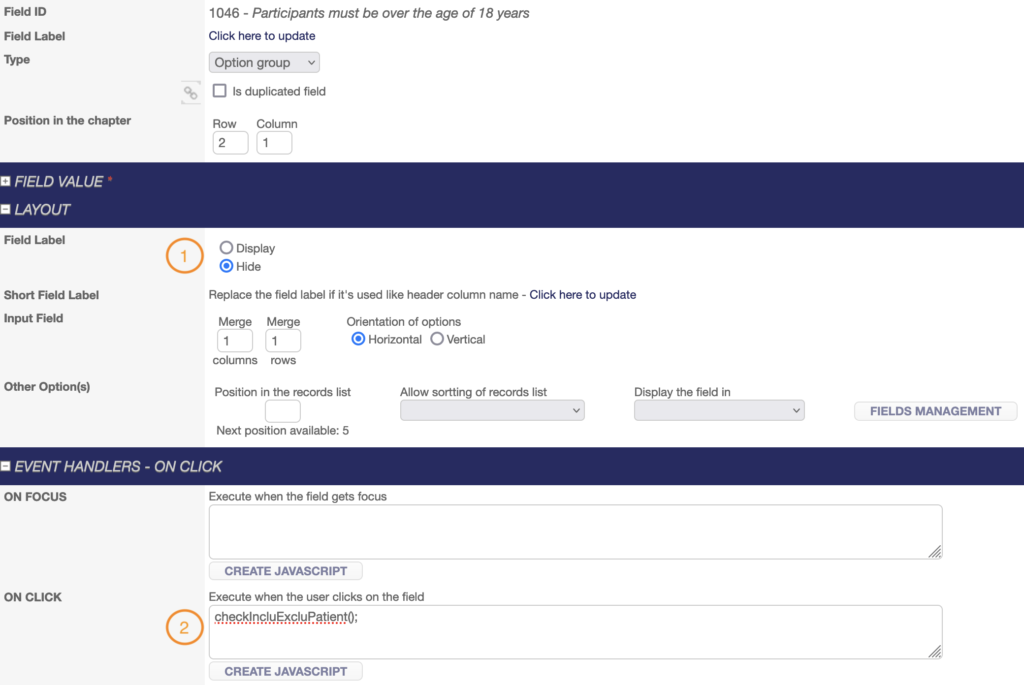
- Set the label of the option group as HIDDEN in the LAYOUT part and add the expression checkIncluExcluPatient(); in the EVENT HANDLERS part – ON CLICK box.
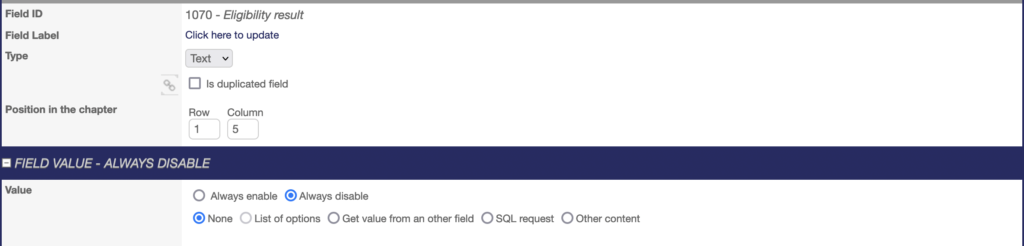
The 3 fields used for the eligibility calculation must be text fields of size 3, entitled « Inclusion Result », « Exclusion Result » and « Eligibility Result ». They will automatically contain the value YES or NO according to the eligibility algorithm.

If all inclusion criteria = Yes, then the inclusion result will be YES.
If all exclusion criteria = No, then the exclusion result will be NO.
If the inclusion result is YES and the exclusion result is NO, then the eligibility result will be YES.
The 3 fields must be configured as ALWAYS DISABLED.
Once all fields are created and configuring, clone and complete the ticket TEMPLATE – Eligibility Algorithm in JIRA to define the algorithm parameters.
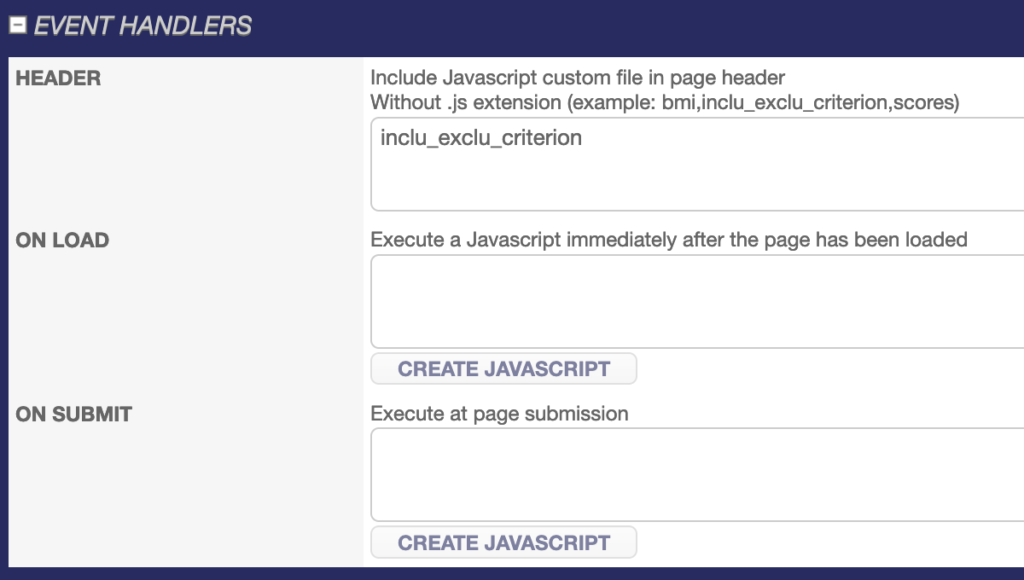
Once the algorithm is set up in the eCRF, click on PAGE PROPERTIES on the selection criteria page and add « inclu_exclu_criterion » in the HEADER insert of the EVENT HANDLER.
All that remains to be done is to test and validate the correct running of the Selection Criteria page in the Front Office.